AE

Assets Excel Sync for Jira Service Management

Jira's standard Excel and Sheets export silently drops Assets custom-field values. This Forge app exports any Assets object type to a no-row-cap, typed .xlsx and re-imports edits as validated bulk updates — all in your browser, so Assets data never leaves Atlassian.

Install from Atlassian Marketplace
Live

Requires Jira Service Management Premium or Enterprise. Assets is only available on those tiers, so on a Free or Standard site there is no Assets workspace for the app to read. You also need an account with Assets permission on at least one object schema, and at least one schema containing objects.

What is Assets Excel Sync for Jira Service Management?

Assets Excel Sync for Jira Service Management is a Forge app published by Cody Labs. Jira's standard Excel and Sheets export path leaves Assets (formerly Insight) custom-field values empty — Atlassian documents this and tracks it as an open issue. This app talks to the separate Assets REST API directly, exports any object type's attributes to a typed, styled workbook with no artificial row cap, and supports a reviewed re-import: every change is shown in a dry-run diff before anything commits. All processing runs client-side inside Forge's Custom UI, as your user, so Assets data never leaves Atlassian's infrastructure. See the privacy policy for full details.

What it does

Every Assets attribute

Fixes the standard-export gap — includes all custom fields and attributes, not just standard fields.

No row cap

Practical limits are Excel and browser memory, not an app-imposed cap.

Dry run before commit

See every change in a diff before anything writes to Assets.

Zero data egress

Workbook generation and parsing happen in your browser inside Forge's Custom UI.

How it works

A round trip for Assets data: export to Excel, review or bulk-edit it there, then import the changes back — with a dry run before anything is written.

  1. Open it from Jira Service Management

    The app runs inside Jira as an Atlassian Forge app, so there is nothing to install locally and no separate login. It respects your existing Jira permissions.

  2. Export an Assets schema or object type

    Click Export to Excel. Unlike the standard Assets export, every attribute comes through intact — including the custom ones that normally get dropped — and there is no imposed row cap.
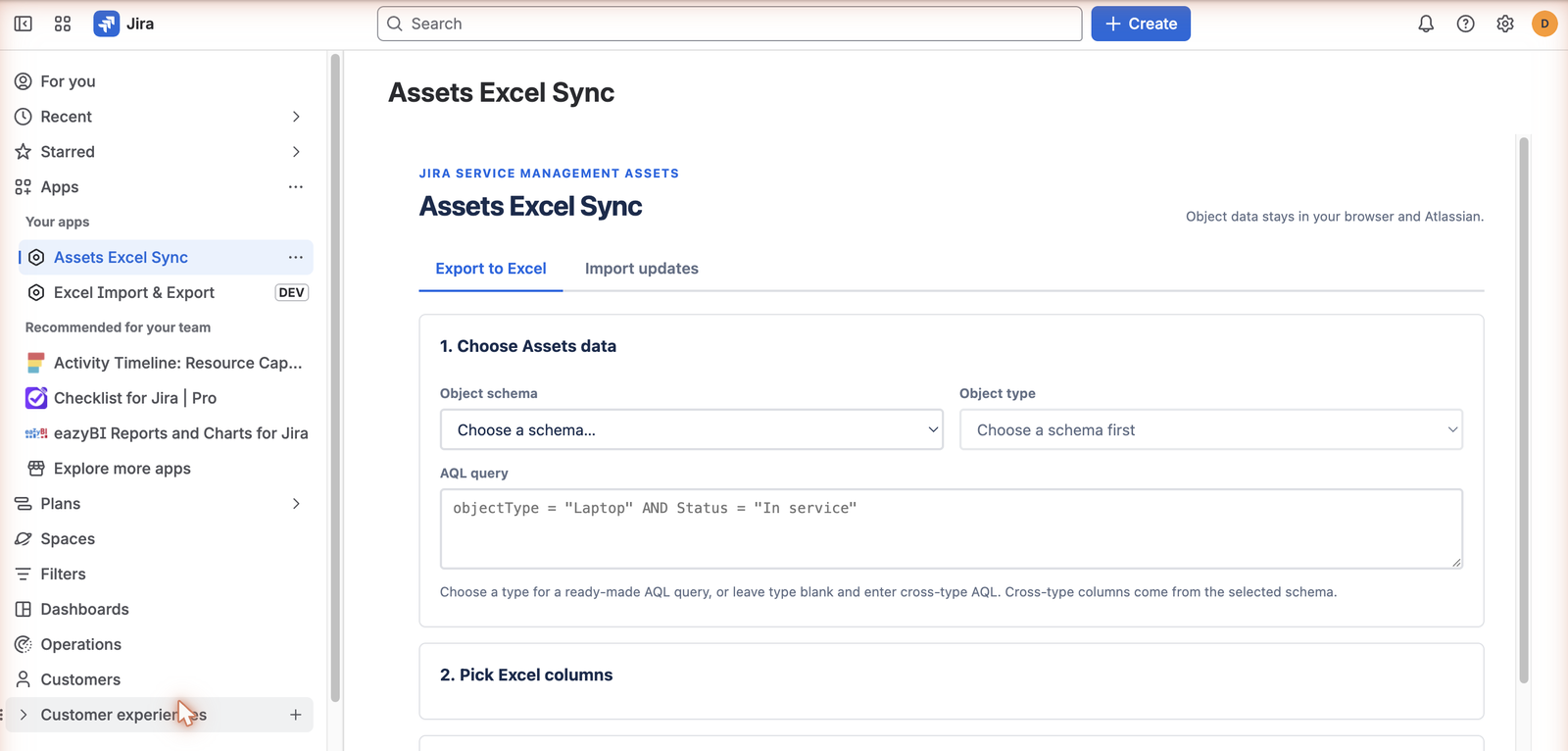
    The Assets Excel Sync panel inside Jira Service Management, showing object schema and type pickers, an AQL query box, and Excel column selection.
    Pick a schema and object type, or write AQL directly — then choose which attributes become Excel columns.
  3. Edit the workbook wherever you like

    Bulk-edit in Excel, hand it to someone for review, or reconcile it against another system. The workbook is a normal styled .xlsx, not a fragile export format.

  4. Import back, after a dry run

    Click Import updates and map your columns. The dry run shows every change as a diff before anything is committed, so you approve the result rather than discovering it. Workbook generation and parsing both happen in your browser — object data never leaves Atlassian's context.

What you need before you start

  • Jira Service Management with Assets, and permission to view the objects you export.
  • Permission to edit those objects if you intend to import changes back.
  • Excel or any tool that reads .xlsx — nothing else to install.

Pricing

Trial
$0
  • 30-day trial
  • Via Atlassian
  • Premium+ tier
Standard
US$20/mo for 1–10 users
  • Discounted volume tiers above 10 users
  • Paid via Atlassian
  • JSM Assets Premium or Enterprise required

Frequently asked questions

Does Jira's normal export include Assets fields?

No — Atlassian's own standard Excel and Sheets export leaves Assets custom-field values blank. This app talks to the Assets API directly and exports every attribute.

Is there a row cap on export?

No — practical limits are Excel and browser memory, not an app-imposed cap.

Does Assets data leave Atlassian's infrastructure?

No — workbook generation and parsing both happen in your browser inside Forge's Custom UI. The data never leaves Atlassian's servers.